
Passkeys: A Comprehensive Guide to Modern Authentication

1. Introduction
Passkeys represent a fundamental shift in how users authenticate to digital services. Moving beyond traditional passwords, passkeys leverage cryptographic technology to provide a more secure, convenient, and phishing-resistant approach to account access. This document explores the technical foundations, practical implementation, business benefits, and adoption landscape of passkeys.
1.1 The Authentication Problem
For decades, passwords have served as the primary mechanism for protecting user accounts. Despite their ubiquity, passwords present persistent security and usability challenges. Users struggle to remember multiple strong passwords, leading to reuse across services. Organizations face the burden of secure storage and management. Attackers exploit these weaknesses through phishing, brute force, and credential stuffing attacks.
The need for a more robust authentication method has driven research and development toward passwordless approaches. Passkeys have emerged as a practical solution that addresses fundamental weaknesses in password-based authentication.
1.2 What Are Passkeys?
Passkeys are cryptographic credentials that replace passwords. Instead of memorizing or storing a secret string, users possess a private key on their device. When logging in, the device proves possession of the corresponding public key without ever transmitting secrets across the internet. This approach eliminates the vulnerabilities associated with traditional passwords while maintaining user-friendly authentication experiences.
2. Technical Architecture
2.1 Cryptographic Foundations
Passkeys rely on asymmetric cryptography, specifically public key cryptography. Each user maintains two mathematically linked keys: a private key stored securely on their device and a public key registered with the service.
When authentication occurs, the service sends a challenge—a random, unique value. The user’s device signs this challenge using the private key. The service verifies the signature using the stored public key. This exchange proves possession of the private key without the private key ever leaving the device.
2.2 The WebAuthn Standard
Passkeys implement the WebAuthn specification, formally known as Web Authentication. This W3C standard defines the interaction between authenticators (devices), browsers, and relying parties (websites or applications). WebAuthn abstracts away cryptographic complexity, providing a standardized API that developers can implement.
The standard supports multiple authenticator types, from platform authenticators built into devices to external hardware security keys. This flexibility allows users to choose their preferred authentication method while maintaining security standards.
2.3 Authenticator Types
Platform Authenticators are integrated into devices. Windows Hello, Face ID on iPhones, and fingerprint sensors on Android devices all serve as platform authenticators. These leverage device hardware and local biometric systems for user verification while maintaining the underlying cryptographic architecture.
Cross-platform Authenticators are external devices like hardware security keys. These devices independently perform cryptographic operations and verify user presence through physical interaction (button press) or biometric input. They provide authentication across multiple devices and platforms.
Multi-Device Credentials represent a newer approach where passkeys sync across a user’s devices via cloud backup. iCloud Keychain, Google Password Manager, and similar services enable users to authenticate on new devices using their synced passkey. This combines convenience with security, as the synced credentials remain encrypted and only the user can access them.
3. How Passkeys Work: The Authentication Flow
3.1 Registration Process
Registration establishes the credential that will later enable authentication.
The user initiates account creation or enables passkey on their existing account. The server generates a random challenge and sends it to the browser along with metadata about the service (origin, name). The browser invokes the platform authenticator or accepts a hardware key. The authenticator generates a cryptographic key pair and signs the challenge with the private key. The authenticator returns the public key, a signed attestation (proving the authenticator type), and the signed challenge to the server. The server verifies the signature, validates the attestation, and stores the public key and credential ID associated with this user. The user receives confirmation that passkey registration succeeded.
3.1.1 Step-by-Step Guide to Creating a Passkey
Step 1: Access Account Settings Navigate to your account settings or security section on the website or application. Look for authentication options, security settings, or a section labeled “Sign-in methods,” “Passkeys,” or “Authentication methods.” This is typically found in account preferences or profile settings.
Step 2: Select “Add Passkey” or “Create Passkey” Find and click the option to add or create a new passkey. The service may present this alongside other options like adding two-factor authentication or backup codes. Some services automatically detect passkey capability and offer it during the login or registration process.
Step 3: Verify Your Identity Before creating a new passkey, the service requires you to verify your current identity. This may involve entering your password, confirming a code sent to your email, or completing another authentication step. This prevents unauthorized passkey creation on a compromised account.
Step 4: Choose Your Authenticator Type The service presents available authenticator options based on your device:
Platform Authenticator (This Device): Uses your phone’s biometric (Face ID, fingerprint) or PIN. Select this for the most convenient option if your device supports it.
Synced Passkey (Cloud-Backed): Stores the passkey in cloud services like iCloud Keychain, Google Password Manager, or Microsoft Authenticator. This allows using the passkey on other devices you own.
Security Key (Hardware): If you have a hardware security key (YubiKey, Titan, etc.), insert or connect it and select this option.
Step 5: Complete Authenticator Setup Depending on your chosen authenticator, you may need to:
Scan your fingerprint or face if using biometric authentication
Enter a PIN or device password to authorize the passkey creation
Physically tap, insert, or interact with a hardware security key
Confirm passkey creation in a cloud backup service
The authenticator generates the cryptographic key pair locally on your device. No private key data travels to the service.
Step 6: Name Your Passkey (Optional) Many services allow you to name your passkey for easy identification, especially if you create multiple passkeys. You might name them “Work Phone,” “Personal Laptop,” or “Security Key” to distinguish between authenticators.
Step 7: Confirmation and Backup Options The service confirms successful passkey creation. At this point, it may offer:
Recovery codes to save in a secure location (useful if you lose access to your device)
Option to register additional passkeys or authenticators as backups
Guidance on how to use your passkey for future logins
Step 8: Test Your Passkey (Recommended) Log out of your account and log back in using your newly created passkey to ensure it works properly. This confirms the passkey is functioning before you rely on it. Complete the login process by selecting the passkey option and verifying your identity with your chosen authenticator.
Step 9: Save Recovery Information If the service provided recovery codes, download and securely store them. Keep them in a safe location separate from your devices—a password manager’s vault, a safety deposit box, or a securely encrypted backup. These codes allow account access if you lose all registered passkeys.
Step 10: Plan for Multiple Devices (Optional) Consider registering passkeys on multiple devices you regularly use. This provides redundancy—if you lose one device, you can still access your account from another. Simply repeat the process on each device, or use cloud-backed passkeys that automatically sync across your devices.
3.2 Authentication Process
During login, the authentication flow leverages the pre-registered public key.
The user navigates to the login page and indicates they want to authenticate with a passkey (or the system auto-detects available passkeys). The server generates a new random challenge and sends it to the browser. The browser queries available authenticators—platform authenticators, synced credentials, or connected hardware keys. The user selects their authenticator and completes local verification (biometric scan, password, or physical button press). The authenticator signs the challenge with its private key and returns the signature. The browser sends the signed assertion back to the server. The server verifies the signature using the stored public key. If verification succeeds, the user is authenticated.
3.3 Key Security Properties
Phishing Resistance: Passkeys are bound to the service’s origin (domain name). An attacker cannot redirect a user to a phishing site and reuse captured authentication data. The authenticator verifies the origin cryptographically and refuses to authenticate for a different domain.
No Transmission of Secrets: The private key never leaves the user’s device. The user only proves knowledge of the private key through cryptographic signatures, never exposing the key itself.
Replay Attack Prevention: Each authentication challenge is unique and single-use. A signature for one challenge cannot be reused for another.
Local User Verification: Authentication requires a local action—biometric verification, PIN entry, or physical interaction. This prevents unauthorized use even if a device is briefly accessed by another person.
3.3 How to Enable Passkey Support for Any Application
Enabling passkey authentication requires both technical implementation and user-facing features. Here’s a comprehensive guide for developers and organizations:
3.3.1 Prerequisites and Planning
Before implementing passkeys, assess your current infrastructure. Determine what programming languages and frameworks your application uses—Node.js, Python, Java, .NET, or others. Identify your technology stack, including web frameworks, databases, and authentication libraries. Review your current user authentication system to understand how passwords are currently stored and verified. Plan your migration strategy—will you replace passwords entirely or offer passkeys alongside existing methods? Define your supported authenticator types—platform authenticators, hardware keys, or both. Establish requirements for user recovery if they lose access to passkeys.
3.3.2 Choose a WebAuthn Library
Select a library that abstracts WebAuthn complexity. Popular options include:
Passkeys.dev Libraries: Maintained by major tech companies, these provide reference implementations. SimpleWebAuthn is a well-regarded Node.js option with excellent documentation and active maintenance.
Platform-Specific Libraries: Microsoft provides Passwordless.dev libraries for .NET applications. Google offers WebAuthn libraries for various platforms. Apple provides documentation and samples for iOS and macOS.
Third-Party Services: Auth0, Okta, AWS Cognito, and Firebase offer passkey support through their identity platforms. These abstract implementation details and provide managed infrastructure.
Evaluate libraries based on language support, documentation quality, community activity, and whether they match your security requirements.
3.3.3 Backend Implementation
Set Up Registration Endpoint: Create an API endpoint that handles passkey registration requests. This endpoint should verify the user is authenticated, generate a challenge, and return registration options to the client. The response includes the challenge, expected origin, and username information formatted per WebAuthn specifications.
Example flow:
User requests to register a passkey
Server generates a cryptographically secure random challenge
Server stores the challenge temporarily (valid for a short period)
Server returns options including the challenge to the client browser
Client receives and processes this data
Implement Verification Logic: After the authenticator creates the credential, verify the response. Validate the challenge matches what was sent, verify the attestation statement if required, extract the public key from the credential, and store the public key and credential ID in your database associated with the user account.
Create Authentication Endpoint: Build an API endpoint that handles authentication requests. This endpoint should retrieve all passkeys registered for a user, generate an authentication challenge, and verify the cryptographic signature returned by the authenticator.
Authentication flow:
User provides their username or email
Server retrieves all registered credentials for this user
Server generates a new authentication challenge
Server sends challenge and credential information to the client
Client browser coordinates with authenticator to sign the challenge
Server receives and verifies the signature using stored public keys
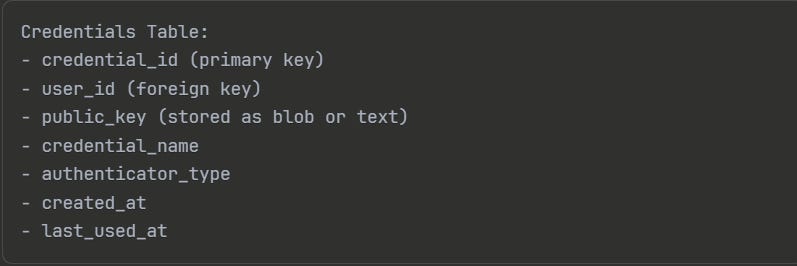
Store Credentials Securely: Design your database schema to store passkey metadata. Store the credential ID (unique identifier), public key (in proper format for your library), credential name or description, registration timestamp, last used timestamp, and associated user account. Never store the private key—it remains on the user’s device.
Implement Credential Management: Allow users to view registered passkeys, delete old passkeys, and manage recovery options. Provide an interface where users see their registered authenticators with names and creation dates. Allow deletion of specific passkeys. Implement recovery mechanisms—backup codes or recovery contacts.
3.3.4 Frontend Implementation
Update Login Page: Add a “Sign in with Passkey” option alongside traditional login. When users click this option, detect available passkeys and initiate the WebAuthn authentication flow.

Update Registration/Settings Pages: Add passkey creation to account settings or registration flows. Display a “Add Passkey” button or link. When clicked, initiate the registration flow, guide users through the authenticator interaction, and confirm successful creation.

Handle Authenticator Selection: Modern browsers automatically display available authenticators when registration or authentication is requested. Platform authenticators appear as options, synced passkeys become available, and connected hardware keys are detected. Let the browser handle this user interface rather than building custom selection logic.
Provide User Guidance: Show clear instructions for first-time passkey users. Explain what passkeys are, how they improve security, and how to use them. Include troubleshooting information for common issues like “authenticator not found” or “verification failed.”
3.3.5 Cross-Platform Considerations
Web Applications: Implement WebAuthn through the Credential Management API available in modern browsers. Test across Chrome, Firefox, Safari, and Edge. Ensure proper origin validation—the service origin must match exactly where passkeys were registered.
Mobile Applications: iOS apps use the Authentication Services framework for passkey support. Android apps use the Google Play services Identity API. Native implementations on each platform provide seamless integration with device biometrics and credential managers.
Hybrid Approach: Web applications can be opened from mobile devices, allowing passkeys registered on the mobile platform to work in mobile browsers. Test this flow to ensure smooth cross-platform authentication.
3.3.6 Testing Passkey Implementation
Browser Testing: Test registration and authentication across major browsers. Verify that passkeys created in one browser aren’t accessible in another (unless cloud-backed). Test on both desktop and mobile browsers.
Authenticator Testing: Use platform authenticators during development. Test with at least one hardware security key if you support them. Verify behavior when an authenticator is unavailable.
Error Handling: Test scenarios where authentication fails—user cancels, wrong authenticator is used, or network error occurs. Ensure graceful error messages guide users to recovery.
Recovery Testing: Verify recovery codes work. Test password reset flows if you’re maintaining password support alongside passkeys. Confirm users can regain account access through established recovery procedures.
3.3.7 User Migration Strategy
Phase 1 - Optional Addition: Offer passkeys as an optional authentication method. Existing users can continue with passwords while interested users adopt passkeys. Promote passkeys through notifications and settings pages.
Phase 2 - Encourage Adoption: Provide incentives or emphasize security benefits. Send educational content about passkeys. Track adoption metrics to understand user interest and concerns.
Phase 3 - Gradual Transition: After sufficient adoption, consider phasing out password support. Provide extended notice and support to help remaining users migrate. Maintain password support longer for users with accessibility needs.
Phase 4 - Full Deployment: Once adoption reaches target levels, passkeys become the primary authentication method. Maintain recovery options for users without device access.
3.3.8 Security Considerations During Implementation
Verify Origins Properly: The origin validation is critical for phishing resistance. Ensure your implementation correctly verifies that the origin used during registration matches the current origin. Browsers handle this, but verify your library implements it correctly.
Validate Challenges: Every registration and authentication requires a fresh, cryptographically secure challenge. Implement proper challenge generation and validation. Prevent challenge reuse or manipulation.
Implement Attestation Checking: During registration, verify authenticator attestation if your security requirements demand it. This ensures devices meet security standards. Use attestation verification libraries provided by your WebAuthn implementation.
Secure Temporary Storage: Challenges and registration sessions are stored temporarily on the server. Use secure, short-lived storage (encrypted cache with time limits). Clean up expired sessions regularly.
Protect Public Keys: Although public keys aren’t secrets, protect them from unauthorized modification. Detect if stored public keys are tampered with. Implement database integrity checks and access controls.
4. Implementation Considerations
4.1 Server-Side Implementation
Implementing passkey support requires changes to authentication systems. Services must store public keys and credential metadata instead of password hashes. The authentication logic shifts from verifying password hashes to verifying cryptographic signatures.
Most platforms provide libraries and SDKs that handle WebAuthn complexity. Services using these libraries need to integrate passkey registration and authentication endpoints, update user management systems to handle passkeys alongside or instead of passwords, and adjust security workflows (password reset, account recovery).
4.2 Client-Side User Experience
Modern browsers and operating systems handle most complexity transparently. Users see familiar experiences—biometric prompts, pin requests, or hardware key interactions. The passwordless aspect remains invisible in many cases, with users simply confirming their identity through familiar means.
Services benefit from simplifying registration flows. Instead of requiring strong password creation, users simply verify their identity, and the authenticator handles credential generation. This reduces user friction and support burden.
4.3 Recovery and Account Access
A critical implementation challenge involves account recovery when a user loses access to their authenticator. Services must define recovery policies: maintaining backup authentication methods, supporting multiple passkeys, using recovery codes, or requiring identity verification processes.
Well-designed systems enable users to register passkeys on multiple devices or support recovery methods that don’t require the original authenticator, ensuring users aren’t permanently locked out due to lost or damaged devices.
5. Business and Security Benefits
5.1 Enhanced Security Posture
Passkeys eliminate entire attack vectors. Phishing-resistant authentication makes credential theft through social engineering ineffective. Brute force attacks become impractical against asymmetric cryptography. Weak password usage, password reuse, and related compromises simply cannot occur.
For enterprises, this translates to reduced breach risk, lower incident response costs, and improved compliance with security frameworks that now increasingly require passwordless or multi-factor authentication.
5.2 Improved User Experience
Despite enhanced security, passkeys improve user experience. Users no longer manage password lists, reset forgotten passwords, or worry about password strength. Login becomes faster—a biometric scan or hardware key interaction often completes authentication in seconds.
Support costs decrease as password-related requests diminish. User frustration with account lockouts and reset processes declines.
5.3 Operational Efficiency
Organizations reduce infrastructure and operational overhead. Password storage systems, hashing algorithms, password reset workflows, and related complexity become unnecessary. This simplification reduces security surface area and operational burden.
Identity and access management systems become more straightforward. Multi-factor authentication becomes implicit—possession of the device serves as the first factor, and biometric or PIN verification serves as the second.
6. Adoption Landscape
6.1 Current Support
Major technology platforms have integrated passkey support. Apple’s iOS, iPadOS, and macOS support passkeys through iCloud Keychain with iCloud+ subscriptions. Google Chrome and Android provide passkey support through Google Password Manager. Microsoft Windows and Edge support Windows Hello and hardware security keys.
Industry leaders have begun implementation. Companies like Google, Microsoft, Apple, and major financial institutions now support passkey authentication for user accounts.
6.2 Challenges to Mainstream Adoption
Despite strong technical foundations and corporate backing, mainstream adoption faces obstacles. Consumer awareness remains limited—many users don’t understand what passkeys are or why they should prefer them. Legacy systems and organizations maintain password-based authentication, creating transition challenges. Cross-platform compatibility, while improving, remains imperfect in some scenarios. Users accustomed to passwords may experience confusion during adoption phases.
6.3 Transition Strategies
Organizations adopting passkeys typically employ gradual transition approaches. Offering passkeys as an optional authentication method alongside passwords allows interested users to adopt without forcing immediate change. Providing clear education and documentation helps users understand benefits and implementation. Supporting multiple authenticator types—platform authenticators and hardware keys—addresses different user preferences and security requirements. Establishing recovery and backup methods ensures users aren’t disadvantaged during the transition period.
7. Passkeys vs. Alternative Authentication Methods
7.1 Compared to Passwords
Passkeys eliminate password-related vulnerabilities. Unlike passwords, they cannot be guessed, brute-forced, or reused across services. They provide inherent phishing resistance. However, passwords remain universally compatible, while passkeys require device support. Passwords cost nothing to implement, while passkeys require infrastructure investment.
7.2 Compared to Biometrics
Passkeys and biometrics often work together. Biometric verification on devices using passkeys provides both convenience and security. Standalone biometric systems without cryptographic foundations face different security models. Passkeys address authentication for remote services, while biometrics primarily serve device access.
7.3 Compared to Hardware Security Keys
Hardware keys provide superior security for highly sensitive accounts but introduce friction—users must carry and interact with physical devices. Passkeys on smartphones offer greater convenience while maintaining strong security for most use cases. Many security-conscious users employ both approaches—passkeys for everyday services and hardware keys for critical accounts.
Conclusion
Passkeys represent a significant evolution in authentication technology. By leveraging cryptographic standards, they provide security impossible with passwords while maintaining or improving user experience. The technical foundation is mature, platform support is expanding, and industry adoption is accelerating.
Organizations considering authentication modernization should evaluate passkeys as a core component of their security strategy. The combination of enhanced security, improved user experience, and operational efficiency makes passkeys an compelling choice for organizations committed to robust, user-friendly authentication systems. As the ecosystem continues developing and mainstream consumer awareness grows, passkeys will likely become the dominant authentication mechanism for digital services, replacing passwords as the standard approach to securing user accounts online.
About the Author
Sameer Bhanushali is a seasoned IT professional with extensive experience in designing and implementing robust security frameworks. Sameer has been instrumental in advancing security practices across various sectors. He holds advanced certifications in IAM and Security.
As an Architect, Sameer specializes in helping organizations navigate the complexities of modern cybersecurity challenges, focusing on enhancing security posture through innovative solutions and best practices. His commitment to advancing the field of cybersecurity is reflected in his thought leadership and dedication to protecting sensitive information in an ever-evolving threat landscape.
🔗 LinkedIn Profile
Thank you for putting together such a comprehensive and insightful guide on Passkeys. This is an incredibly detailed breakdown of the technical architecture, implementation steps, and business benefits. The clear, step-by-step approach is particularly helpful for understanding the transition away from traditional passwords.
Keep up the great work!
Best, Sam